




episiotomy
Members
-
Joined
-
Last visited
Everything posted by episiotomy
-
Alright, the software I listed (and others like them) is your best bet to really understand what is happening. It might be fairly obvious with a little internet searching for files or applications that you see popping up in the logs frequently when the stutters occur. I know you said you've reset your PC but that can mean different things depending on exactly what type of 'reset' it is. If you have a pre-built computer and you're resetting your PC with a built-in function that restores the PC like it came out of the box it might be installing software that could be the culprit. I know it's a pain, but if you want to try to isolate this without using more in-depth analysis software you should completely format your PC and install Windows 'from scratch'. This way you'll have to install every other piece of software manually. Install only absolutely necessary software for RDR2 to run - basically just drivers for your GPU, network, and sound. Don't install anything else, not mouse software, not monitoring software, not fan control etc., nothing. Then run RDR2 and LML, see if that resolves the issue. If that is what you have been doing, then there is a way to see if your hardware is perhaps faulty, although it does seem unlikely. This will be a long process if you've never done it before but you could install Linux and see if RDR2 runs with LML without stutters. If the game stutters under Linux then you've almost certainly got misbehaving hardware somewhere in the mix. This would be a last resort, but it would eliminate any and all software/drivers that have caused the stutters up to this point.
-
So, painfully obviously not everything I posted was directly related to fixing stutters. I mentioned removing FSR because guess what? The more you can remove from the process the less complexity you have to deal with. I didn't suggest that a newer version of FSR would help to alleviate the stutters, simply that the option is out there once you get the stutters resolved because FSR2 is less than spectacular. I specifically mentioned that you could try OptiScaler "after you have absolutely everything else sorted". There has never been a game that stuttered on me that I haven't been able to tame. Stutters can come from anywhere. Nothing should be taken for granted when dealing with stutters, even if you are "sure" that there isn't an issue. I've seen PCs that stuttered and the fix was unplugging the front panel USB interface. I've seen LED controller software as the culprit. Moving the RAM to different slots... then when moved back to the original slots it never happened again. Any single seemingly innocuous thing or combination of things may be the fix. If you're 100% certain the stutters occur when vfs.asi is loaded then my final suggestion is to look at how vfs.asi is being hooked into memory and what's happening with the display subsystem at that time. You can use tools like Process Monitor, Process Explorer, Windows Performance Toolkit (follow the instructions by mbk1969), GPUView (uses the same ETL files that WPT uses), PresentMon, and CapFrameX. Windows Performance Toolkit and PresentMon / CapFrameX can log to capture files. Run RDR2 while they are tracing and note exactly when stutters occur then look through the recorded sessions for... whatever the problem is. If you have other applications that are 'hooked' like .asi files or inject themselves into other processes they can fumble over each other if they are trying to hook into or access the same process. Good luck.
-
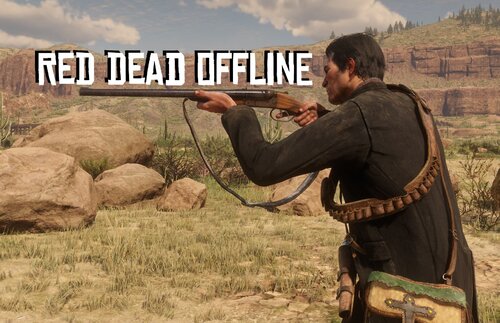 For anyone having problems here is the correct way to install this mod and modify it slightly so it works without technical issues. I have been using RDO for years without any technical issues that I've noticed. Game play issues are a different matter. You may need to run RDR2.exe as an administrator (easy) or set specific folder level permissions (slightly more involved but best practices) depending on where you have RDR2 installed. ScriptHookRDR2 V2, Lenny's Mod Loader, Rampage, and various other mods will create/write log files, settings files, and functionality folders when they are invoked. If you have RDR2 installed to your C: drive you might need to run as administrator or edit folder permissions if logs aren't being written, for example. If RDR2 is installed on any other drive letter you will probably not require permissions modifications. Your RDR2 should be version 1491.50 (or higher... if that ever happens). These are the most up to date files you need for RDR2 modding at the time of this writing: Ultimate ASI Loader - This allows you to load .asi scripts. ScriptHookRDR2 V2 - This allows mods to hook into RDR2 programmatically. Lenny's Mod Loader - This allows for RDR2 game files to be replaced with modded files. For Red Dead Offline: LITE or Better LITE-Audio Fix - These unlock the Red Dead Online assets that Red Dead Offline uses. Use only one, Better LITE has a few audio fixes. Optional: Rampage Trainer - This will allow you to manually spawn in weapons, items, peds, clothes etc. Delete any other files that perform similar functions as those listed above - you cannot have multiple ASI loaders, script hooks, nor content unlockers. Do not use older files such as: RDR2 ASI Loader (Typically called 'version.dll' on RDR2 modding forums.) Alexander Blade's ScriptHook Online Content Unlocker Remove any of these if you have them. They were once the only options, and bless them for existing, but RDR2 has evolved since their releases and they all introduce issues with current RDR2 modding. Follow the instructions included with everything I have linked to the letter. The Ultimate ASI Loader (dinput8.dll), ScriptHookRDR2 V2 (ScriptHookRDR2.dll), and ASI mod files (.asi) will go in the main RDR2 folder. This is the same folder that RDR2.exe is in. If ScriptHookRDR2 V2 is installed correctly you will be able to open the 'Mod Menu' in game by pressing Shift+Insert. Optional: Edit ScriptHookConfig.ini and set: [Overlay] Enable = false The overlay has been known to cause issues with mods launching. A handy feature of the ScriptHookRDR2 V2 'Mod Menu' is that you can load and unload .asi mods in game. This allows you to unload a mod, make edits to its .ini file, then load the mod without having to exit the game to try your changes. The contents of the Lenny's Mod Loader 'ModLoader' folder will also go into the main RDR2 folder. (vfs.asi, lml.ini, ModManager.Core.dll, ModManager.NativeInterop.dll, NLog.dll, and the lml folder) You will now have an 'lml' folder in your main RDR2 folder. This is the folder where 'lml' mods will be installed into. The Lenny's Mod Loader folder 'ModManager' can go anywhere. I put the folder in the main RDR2 folder for simplicity. The 'red_dead_offline' folder will go into the 'lml' folder. The content folders of the LITE or Better LITE mods will go into the 'lml' folder. Go into the 'ModManager' folder and run ModManager.UI.exe to see if Red Dead Offline and LITE are in the LML mod list. The only two things that aren't obvious and correct from these mods' instructions are: In the 'red_dead_offline' folder you need to move 'loader.asi' into the main RDR2 folder. I personally rename the file to 'RDO.asi' for clarity. Ultimate ASI Loader (dinput8.dll) is responsible for loading this .asi file, not Lenny's Mod Loader. Now, here is the most complicated aspect of installing Red Dead Offline so that you don't have any technical issues: You have to edit the textures inside of the cmpndm_weapons_tu.ytd file that resides in the 'red_dead_offline\compendium' folder. To do this 100% correctly you will need CodeX. It is possible to modify the textures using RDR2 Texture ToolKit but the process is much more involved, error prone, and RDR2 Texture ToolKit does not support sRGB textures so it will not be 100% correct. I recommend CodeX. The textures in the cmpndm_weapons_tu.ytd file are not compressed correctly for RDR2 modding and can lead to RDR2 spawning issues. Watch the video on that page by Chunk the chump. (Who is the author of LITE, coincidentally.) This video from the RDR2 spawning issues thread is a tutorial on how to fix the textures with CodeX: https://www.youtube.com/watch?v=8A2OZr5kB8E If you don't fix the Red Dead Offline texture compression formats you might not ever induce the spawning issues if Red Dead Offline is your only or one of your only mods that uses incorrectly compressed .ytd texture files. Most newer mods are aware of the spawning issues and are compressed correctly but many older mods were made before the issue was discovered and the cause identified. Update: There is a new utility that will help to automate the process of fixing improperly compressed textures. You will still need CodeX, but the tool will take care of some tedious steps automatically: Ultimate Modding Helper
- 494 comments
- 15 reviews
-
(I have edited this multiple times to add suggestions, be sure to check for the edits.) I made an account on RDR2Mods just to reply to this when I saw it at random while looking for something else because stuttering is the worst. I don't have this issue but I can suggest some things, as I have eliminated 99.9% of stutter from my RDR2. Your system hardware should be absolutely fine for running RDR2. I would suggest using the 'Balanced' power plan as a daily driver. I'm guessing you mentioned using the 'High performance' plan only as a troubleshooting method. Make sure you're using these files that facilitate RDR2 modding: Ultimate ASI Loader X64 ScriptHookRDR2 V2 In ScriptHookConfig.ini set the [Overlay] to Enable = false I didn't see the overlay in your video but it has been the source of issues for a fair amount of mods. Search indexing shouldn't be a problem unless it is running across a large amount of files. You can check the status of the indexer in Windows. Once it is finished with the initial 'big indexing' operation it will remain quiet unless you add a lot of files in a short period of time. Getting your frametime graph flat before adding LML is where I would start. Cap your FPS. People have reported physics bugs with RDR2 above (I believe) 144 FPS. If you continue to use RDR2's 'Fullscreen' setting you can simply set the refresh rate there to 120. If you decide to use a variable refresh rate you'll need to cap it outside of RDR2 using something like RTSS and cap it slightly below the monitor's maximum refresh rate. There is a formula to follow. For 120 FPS you should cap to 116 FPS. Personally I keep my RDR2 frametime graph locked at a flat line. I can play for hours and never see it waiver. I give myself plenty of GPU headroom and I have the graphics nearly maxed out plus I have fidelity enhancement mods like LOD increases. I do this by using RTSS and setting the limiter to 'Frametime limit' (not Framerate limit) and using a value of 11111 which is the equivalent of 90 FPS in microseconds. This has a few benefits. You're running the GPU at less utilization most of the time - less heat, power draw, and fan noise while your frame pacing is consistent. There are only a handful of odd areas in the game where I see greater than 95% GPU utilization (but maintain 90 FPS) such as on the porch of the Strawberry hotel under certain time and weather conditions. I usually hover around 60 - 70% GPU utilization. For RDR2 I would disable any driver based low-latency features. All of the nVidia low-latency options had drawbacks for me. For AMD this should be called Anti-Lag. I have not owned an AMD card since this feature was created so who knows? Perhaps try using Anti-Lag and see if it helps. Along those lines, try VSync on. It can be combined with FreeSync. Personally I run G-Sync without VSync, but again it doesn't hurt to try. Triple Buffering 'On' should result in smoother frametimes especially with any 'sync' options. Until you achieve a flat frametime graph I would disable FSR. You can add it later. However, the FSR2 that RDR2 ships with is quite old and doesn't look great. You're better off using a mod like Renewal that greatly improves the quality of TAA. You should be able to override the default FSR2 to FSR4 with Vulkan by using OptiScaler - I have not done this exact override personally but I tested OptiScaler with my RTX. OptiScaler adds a lot of complexity and variables so I would only look into this after you have absolutely everything else sorted. The OptiScaler method does still rely on DirectX12 at some point in the pipeline so it may limit your modding options, as many RDR2 graphics mods are Vulkan only and Vulkan is usually better for performance in RDR2. Vulkan is typically the best choice for RDR2, but you may want to give DirectX12 a try. (You'll be able to easily override FSR2 to FSR4 with DX12.) If you stick with Vulkan, set this line in your RDR2 system.xml to 'true': <asyncComputeEnabled value="true" /> You may also try setting: <transferQueuesEnabled value="true" /> I know the asyncComputeEnabled option helps to stabilize frametimes. For AMD GPUs I'm not certain about the transferQueuesEnabled setting. Do not set these to true for DirectX12, asyncComputeEnabled for sure will result in glitches. (Experienced this myself when testing OptiScaler using DX12.) Sidenotes: Enable Full Resolution Screen Space Ambient Occlusion. Your GPU is powerful enough and enabling it eliminates the 'fizzling' effect shadows have on grass and foliage. I set Grass Level of Detail to 6 of 10. 10 of 10 has very little visual difference but the performance cost is huge in certain wide open areas. Parallax Occlusion Mapping Quality on Ultra introduces very noticeable visual artifacts (voids on the ground) in certain areas. High looks nearly as good and doesn't have visual glitches. Give RDR2 Performance Booster V2 a try. It works wonders for me using Vulkan. Try running RDR2 as administrator. Try clearing your RDR2 and AMD shader cache. You'll have to search how to do this depending on where your RDR2 is installed and for instructions on how to clear the AMD driver shader cache. You're basically just deleting some files that will be rebuilt the next time RDR2 is launched. Finally and maybe most obviously, try only one mod at a time. Start with the .asi mods and add them in one by one. I have some of the mods you have and many more. Catalogue Improvements for example is a very large and ambitious mod that uses multiple scripts and LML, I would add that one last. Ped Damage Overhaul Reloaded is a rock-solid mod, as is Legal and Main Menu Skip. Start with those. RDR2 modding is extremely fickle unfortunately. The game is huge and mods that you may think are 'safe' might not show undesirable behavior until you reach a new scenario / area / time and weather condition / add a new mod etc. If none of that helps, dive a bit deeper into your system. Try completely removing your GPU drivers and 'Vulkan Runtime' with DDU. Do some research and find the most stable / bug-free AMD drivers and install those, they will include the 'Vulkan Runtime'. Look up some tutorial videos. You'll need to disable your network interface to prevent Windows from attempting to install drivers automatically, reboot into 'safe mode' and run DDU, reboot normally and install the drivers then re-enable your network interface. Reboot once more for good measure. This will also clear your AMD driver shader cache but not the RDR2 game shader cache. If you clear one type of shader cache it is best practice to clear the other as well. Look into your AMD Smart Access Memory (SAM) and Hardware Accelerated Graphics Scheduling (HAGS) settings. Having these enabled should result in better performance but you never know - maybe disabling them is your answer. Unpark all of your cores. Download the 1.0.1.0 version, it is incredibly simple to use. https://coderbag.com/programming-c/disable-cpu-core-parking-utility Give LatencyMon a try. It isn't the end-all for latency troubleshooting but it's a start. This can help to spot misbehaving applications and drivers. If you have high latency that isn't obviously caused by a driver or application try these quick settings: (Use the 'Balanced' plan though, 'High performance' will never allow your CPU to throttle down when doing mundane tasks.) https://www.youtube.com/watch?v=FFH8u_283mM Make sure all your MSI capable devices are in MSI mode, especially your GPU. Download the MSI_util_v3 linked in mbk1969's post: https://forums.guru3d.com/threads/windows-line-based-vs-message-signaled-based-interrupts-msi-tool.378044/ Or use GoInterruptPolicy. If you have devices in 'LineBased' mode that are capable of MSI mode change them one at a time rebooting between each change and make sure everything works. Double check your RAM integrity with Memtest86+ Make sure your BIOS and all firmware is up to date - motherboard, GPU, and NVMe especially. Good luck, let us know if you figure it out.