




Jump to content
View in the app

A better way to browse. Learn more.

RDR2Mods.com

A full-screen app on your home screen with push notifications, badges and more.

To install this app on iOS and iPadOS
  1. Tap the Share icon in Safari
  2. Scroll the menu and tap Add to Home Screen.
  3. Tap Add in the top-right corner.
To install this app on Android
  1. Tap the 3-dot menu (⋮) in the top-right corner of the browser.
  2. Tap Add to Home screen or Install app.
  3. Confirm by tapping Install.

Graves 1.1

(0 reviews)

7 Screenshots

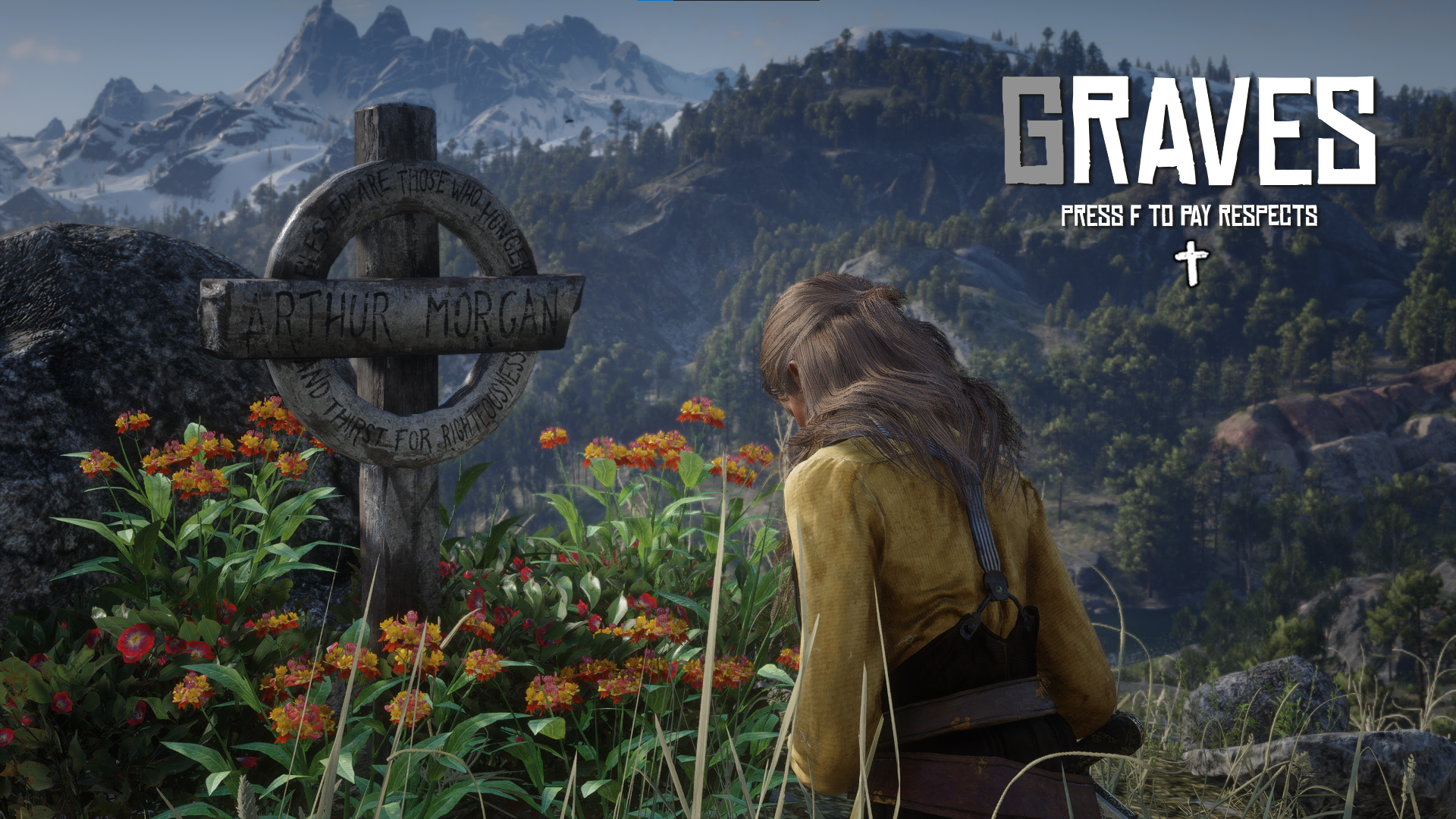
Graves
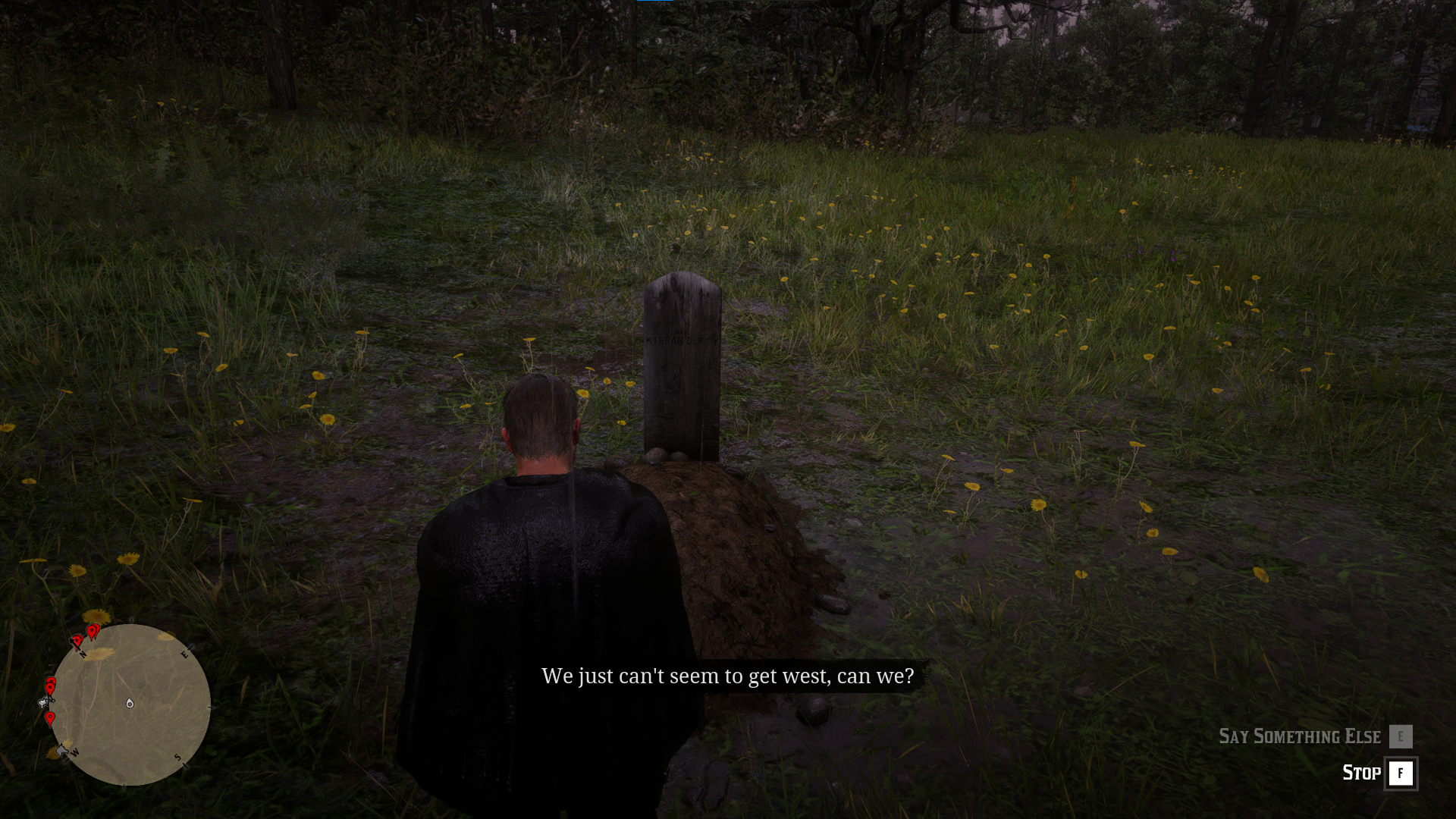
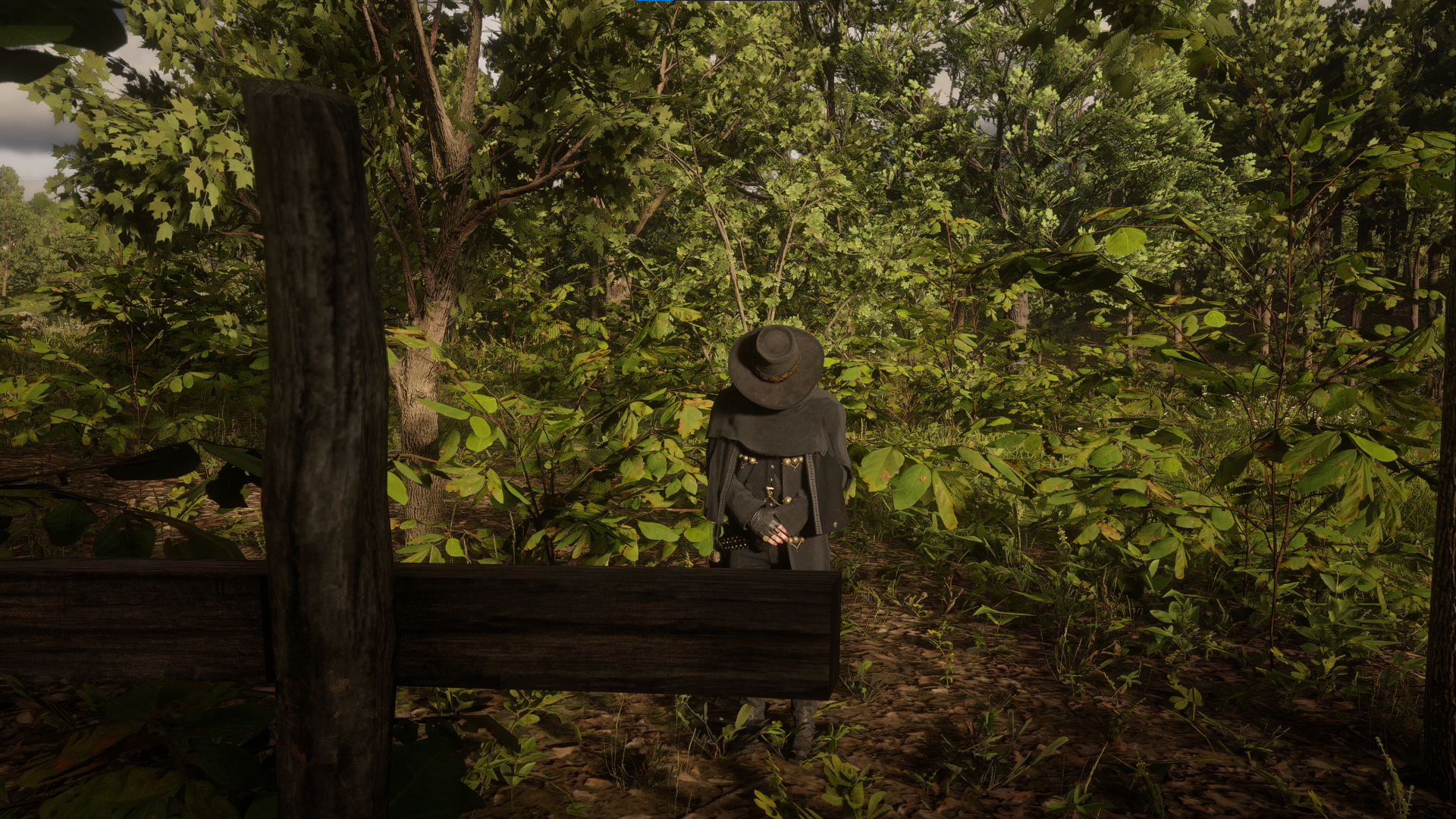
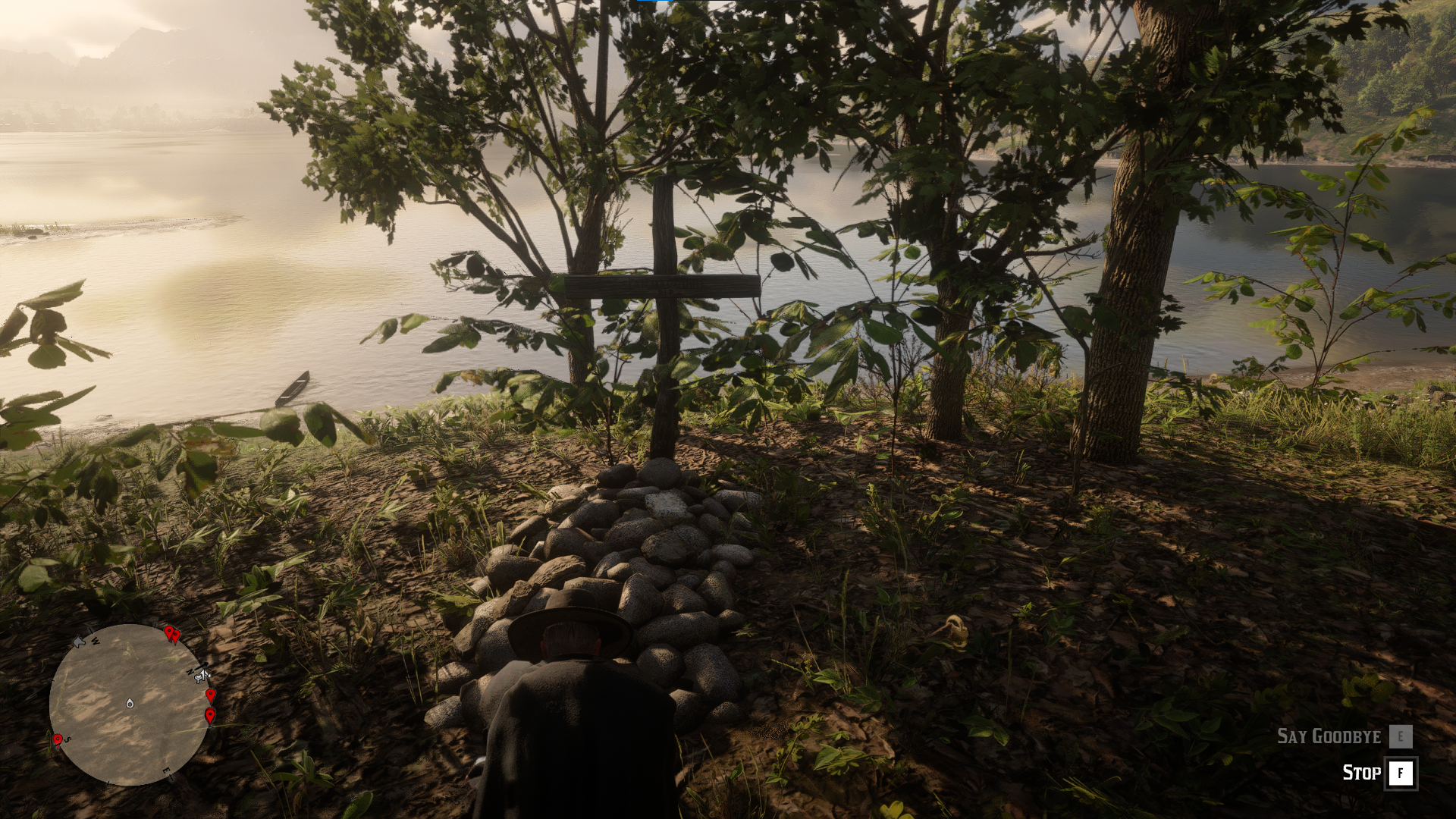
Pay your respects to your fallen camp members and friends.

Features:
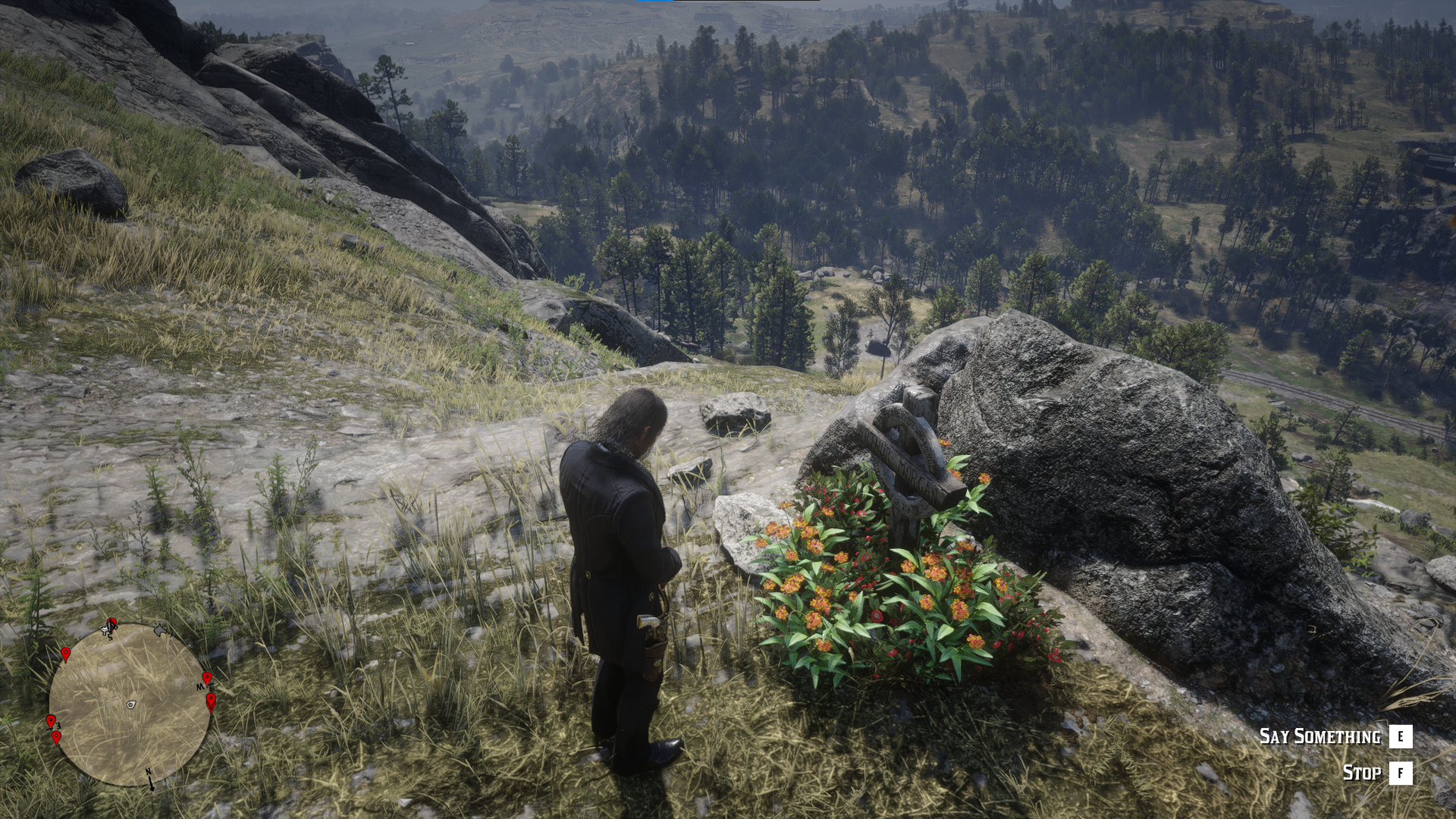
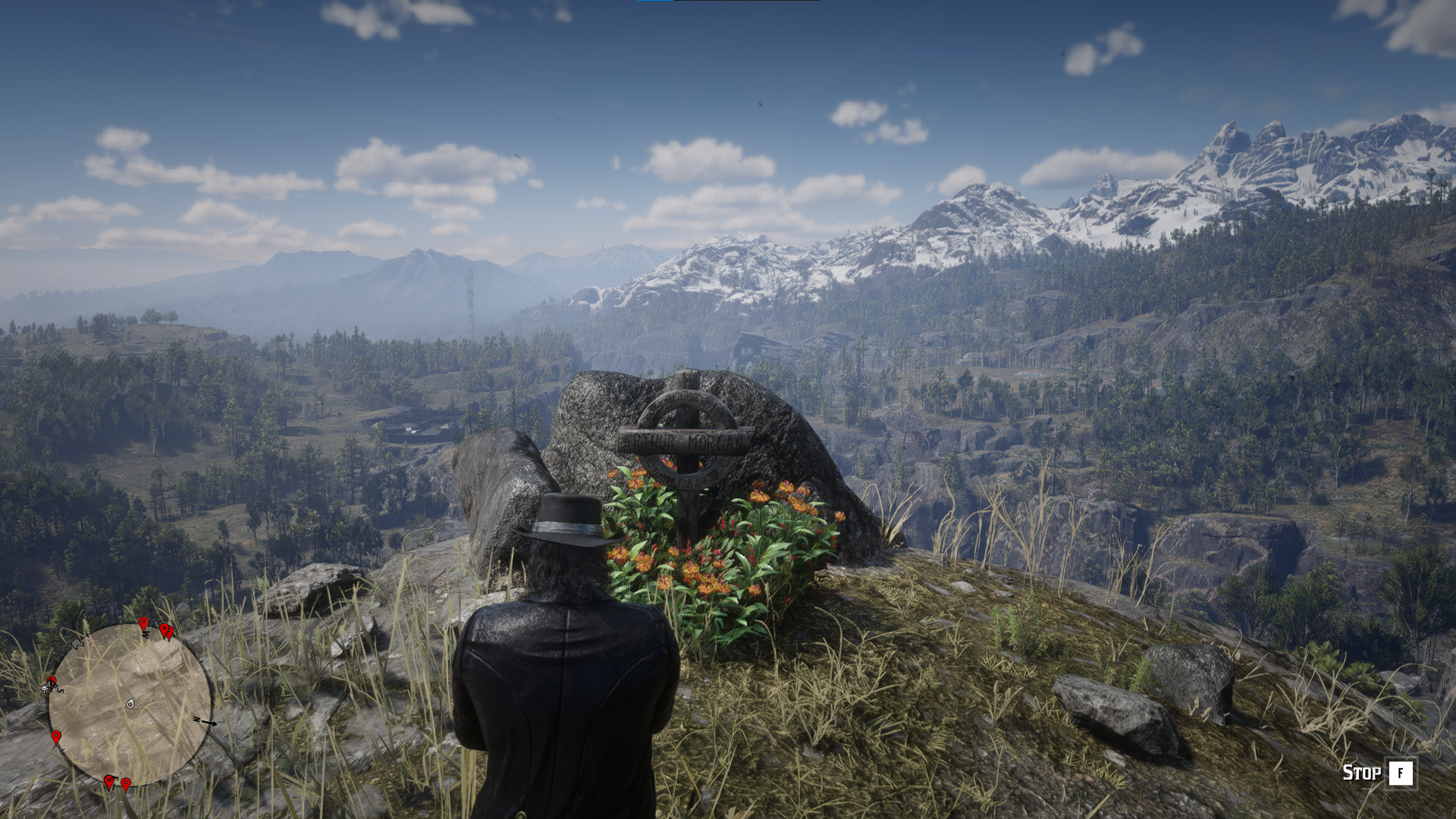
- Press F to pay respects near a grave
- Kneel or standing animations
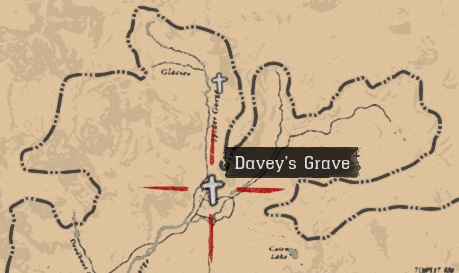
- Grave locations added to the map someone dies
- Speak using E during your interaction
- Grave specific interactions (different voice lines for different graves)

Installation:
- Install ScriptHookV2 and an asi loader
- Copy Graves.asi to the game's main installation folder.

Edited by rejuvenate

What's New in Version 1.1

Released

Changelog
- Graves now appear on the map without needing to reload the mod after the character dies

User Feedback

Recommended Comments

Spadita

Members

(edited)

Hey, wanted to ask if its common that after the character died the function dont work until some time pass by?

Could contain: grass, plant, outdoor, grave, fog, flower, field, landscape

Could contain: text, map

Edited by Spadita

rejuvenate

Recognized Creator Author

On 6/15/2024 at 9:32 PM, Spadita said:

Hey, wanted to ask if its common that after the character died the function dont work until some time pass by?

Could contain: grass, plant, outdoor, grave, fog, flower, field, landscape

Could contain: text, map


the graves get added once the game restarts, so restart your game or reload the mod using modmenu 

Spadita

Members

Alright, thanks

Create an account or sign in to comment

Configure browser push notifications

Chrome (Android)
  1. Tap the lock icon next to the address bar.
  2. Tap Permissions → Notifications.
  3. Adjust your preference.
Chrome (Desktop)
  1. Click the padlock icon in the address bar.
  2. Select Site settings.
  3. Find Notifications and adjust your preference.