



Advanced Performance Overlay
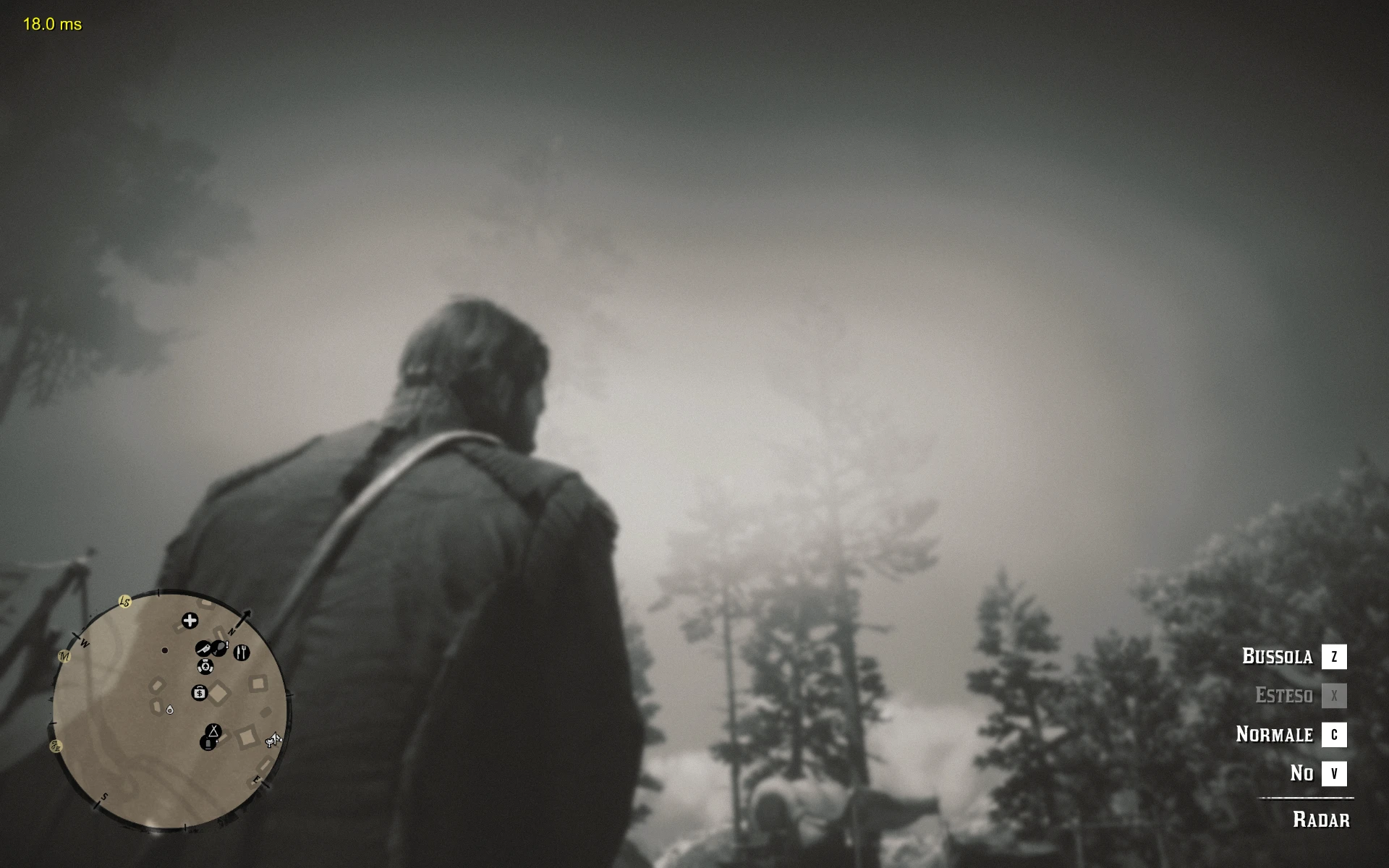
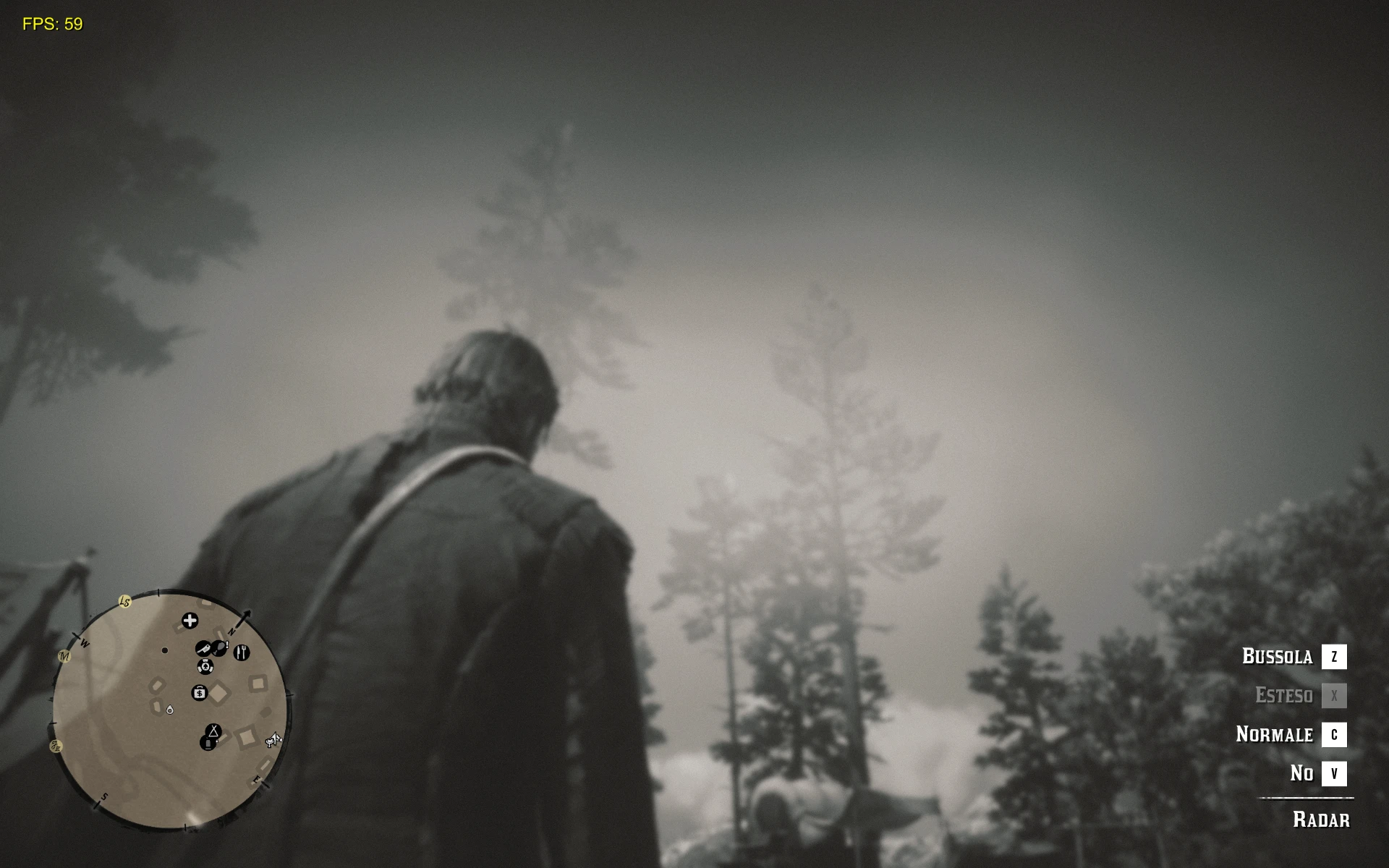
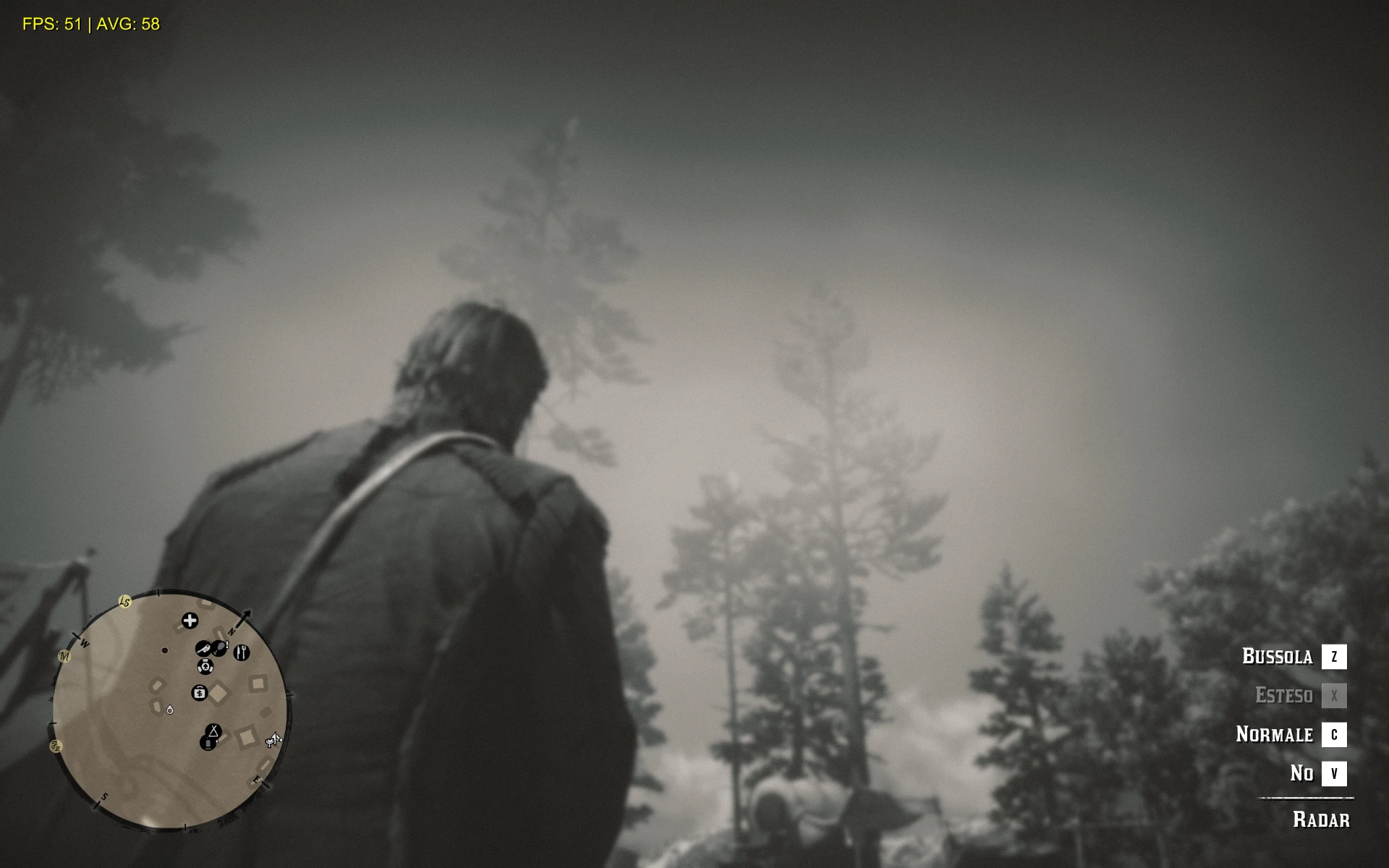
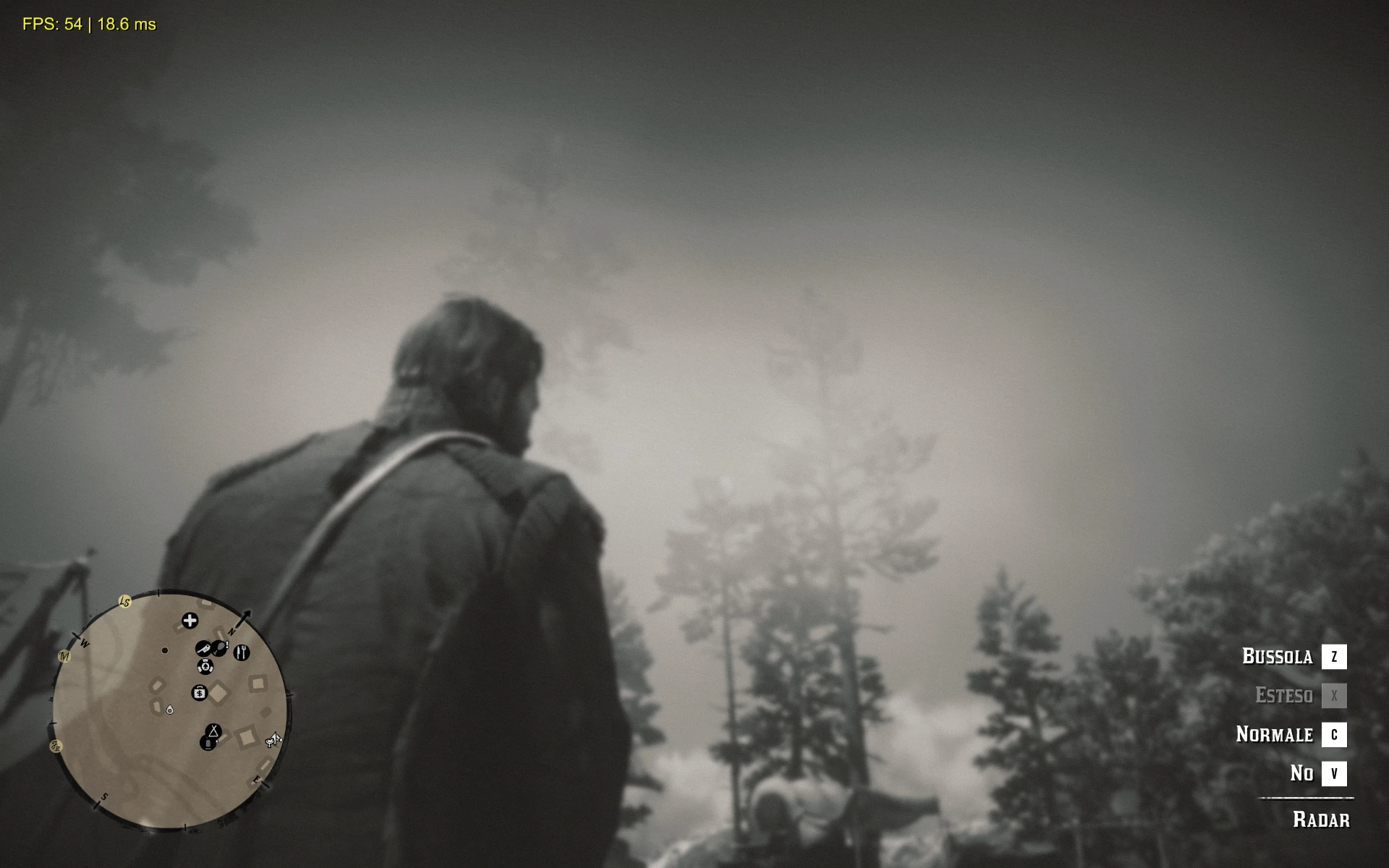
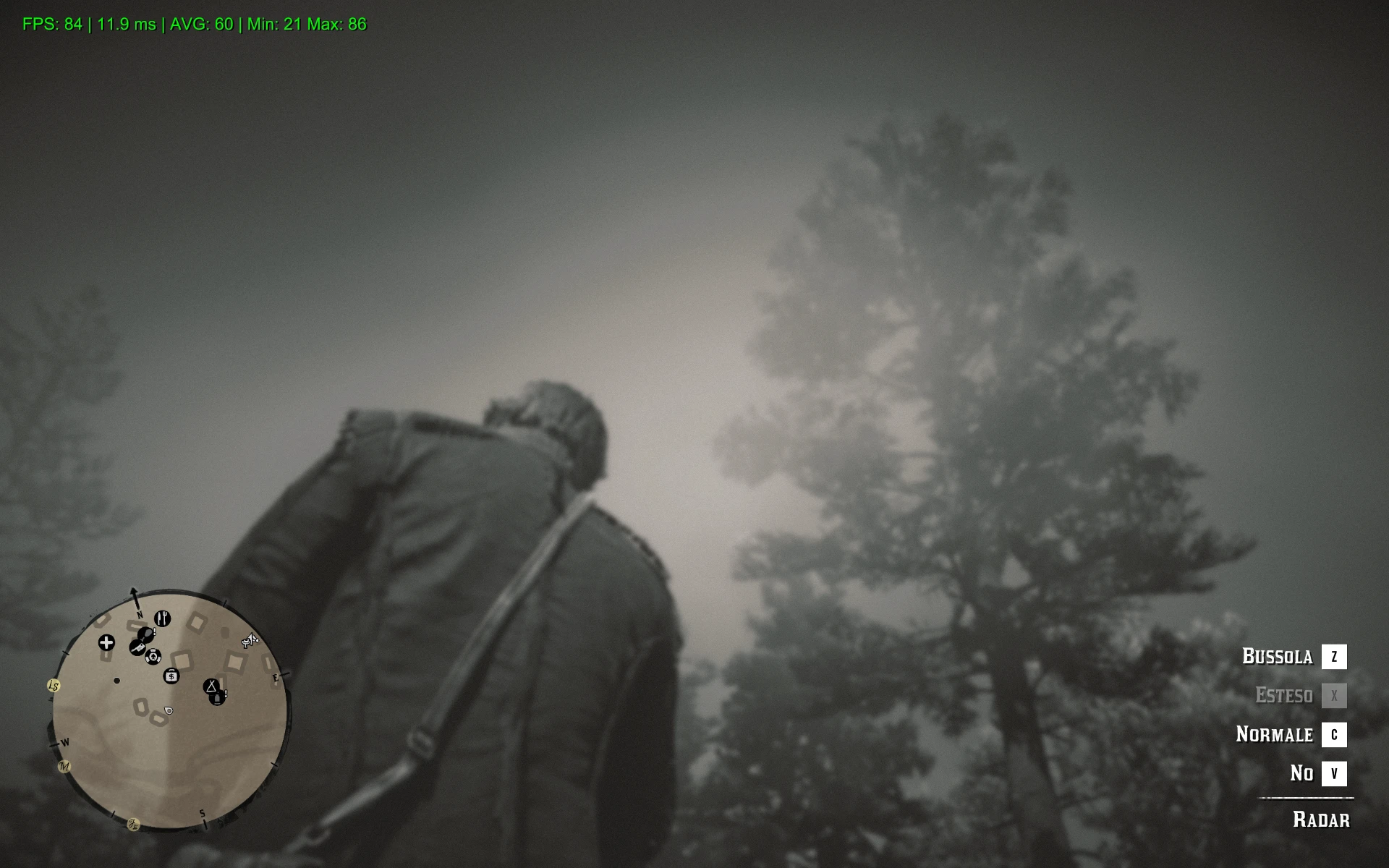
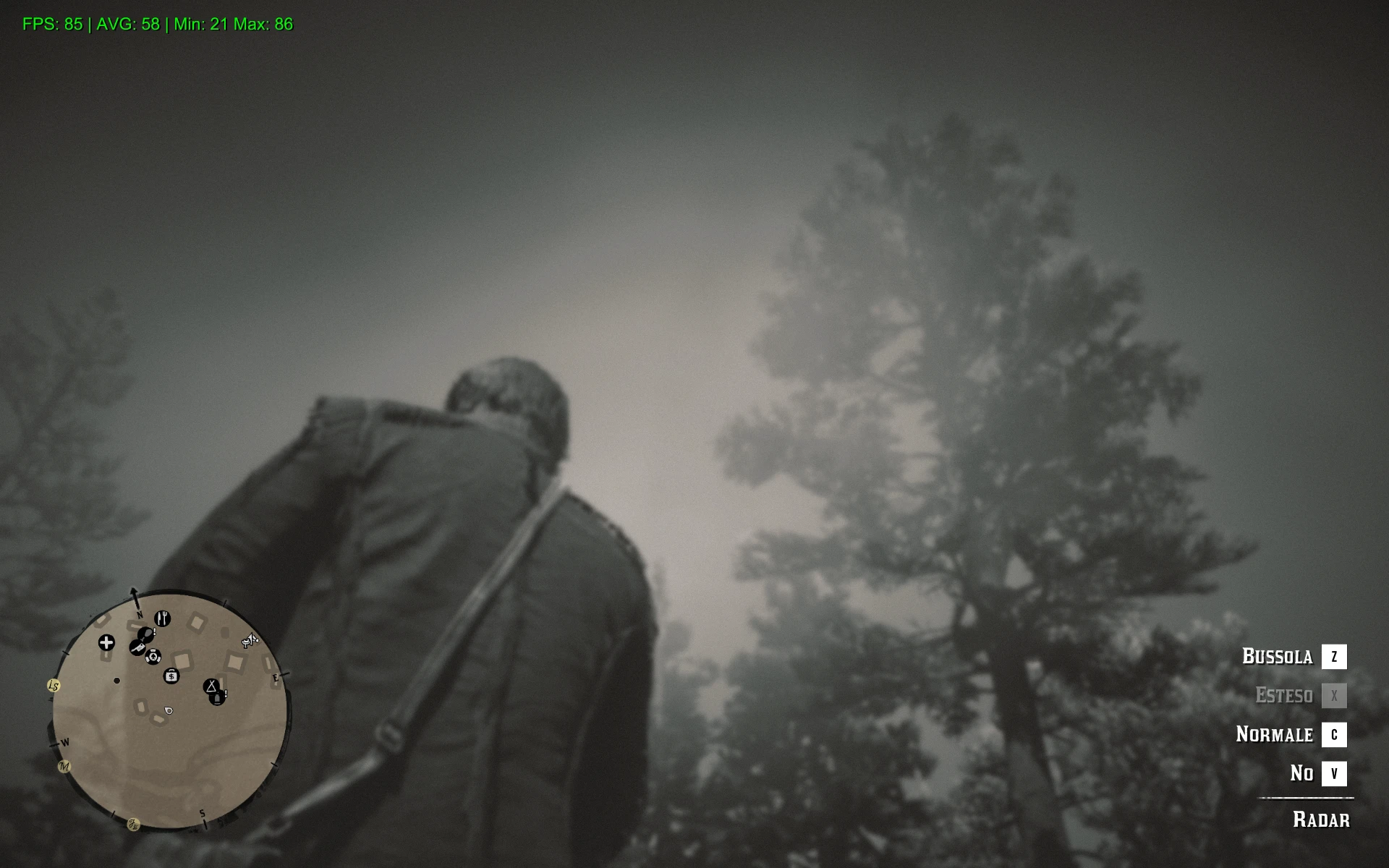
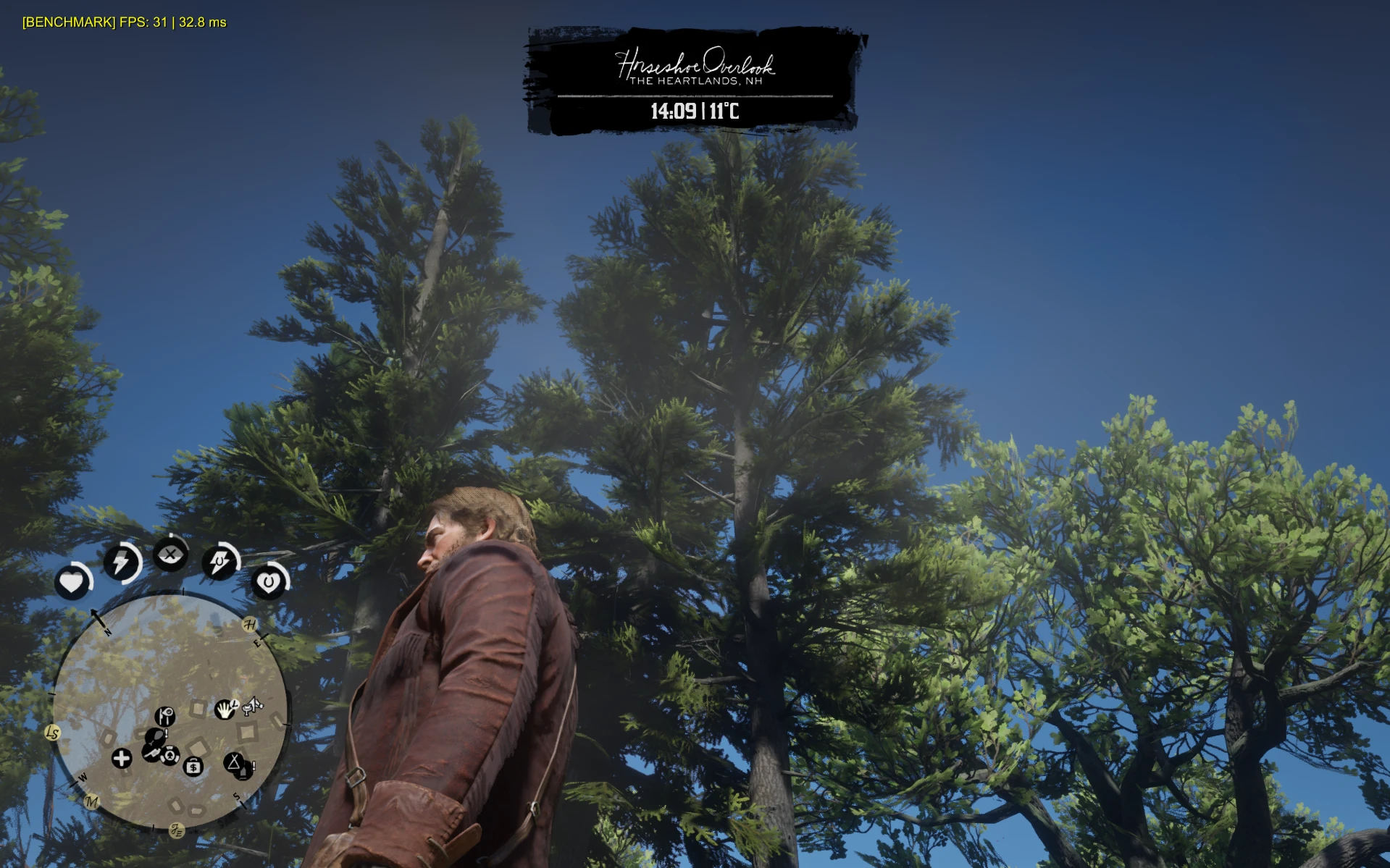
Advanced Performance Overlayis a lightweight, highly customizable performance diagnostic tool for Red Dead Redemption 2. Designed to feel like a native part of the game UI, it provides advanced statistics for enthusiasts without the need for heavy external software.
Features
6 Display Modes: Cycle through FPS, Frametime (ms), Average FPS, and Min/Max session stats.
Smart Stutter Detector: A visual [!] warning icon appears instantly if a micro-stutter is detected.
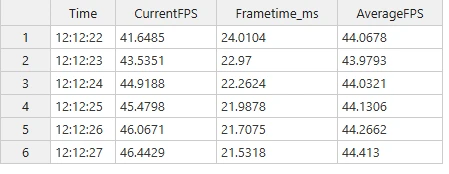
Pro Benchmarking: Export real-time data (Time, FPS, MS, AVG) to a [kbd].csv[/kbd] file for professional analysis.
Native Notifications: All setting changes are confirmed via the game's original notification system.
Fully Customizable: Change position (all 4 corners), font size, and hotkeys in-game.
Persistent Settings: All preferences are automatically saved to an [kbd].ini[/kbd] file.
Controls
F6: Toggle Stutter Detector ON/OFF
F7: Start/Stop Benchmark (Logs to CSV)
F8: Cycle Display Modes
Shift + F8: Reset Session Statistics (Min/Max/AVG)
F9: Toggle Overlay ON/OFF
F10: Cycle Position (4 Corners)
F11: Cycle Font Size (Small, Medium, Large)
How to Customize Keys
To change the hotkeys, open the.inifile and change the number next to the key name.
Location:C:\Users\Public\Documents\RDR2_FPSCounter.ini
Common Codes:
F1: 112 | F2: 113 | F3: 114 | F4: 115 | F5: 116 | F6: 117
F7: 118 | F8: 119 | F9: 120 | F10: 121 | F11: 122 | F12: 123
Insert: 45 | Home: 36 | PageUp: 33 | Delete: 46 | End: 35
Full list of virtual-key codes:Link
Installation
Make sure you have ScriptHookRDR2 by Alexander Blade installed.
Copy RDR2_FPSCounter.asi into your main Red Dead Redemption 2 folder.
Settings and Logs are located in: C:\Users\Public\Documents\
Troubleshooting
Overlay not showing? Check if dinput8.dll and ScriptHookRDR2.dll are present in your game folder.
Stutter warning [!] appearing too often? Your game might be struggling with background tasks or unstable frame delivery. Try locking your FPS.
Benchmark file not creating? Ensure your antivirus isn't blocking write access to the Public Documents folder.
Technical Details
The mod uses relative coordinates, ensuring perfect scaling onall resolutions(1080p, 1440p, 4K) and ultra-wide aspect ratios. Fully compatible withVulkanandDirectX 12.
What's New in Version 1.2
Released
Version 1.2
New Features
Session Summary Report: Now, when you stop the benchmark (F7), the mod automatically writes a summary at the bottom of the CSV file, showing the Total Average FPS for the entire session.
Auto-Stop Safety Limit: Added a safety mechanism that automatically stops the benchmark and saves data after 1 hour (3600 seconds) to prevent accidental oversized log files.
Improvements
Enhanced UI Notifications: Improved in-game pop-up messages to clearly distinguish between manual stop, auto-stop, and stats reset.
CSV Data Integrity: Optimized the file-writing stream to ensure the "Session Summary" is correctly appended even if the benchmark reaches the safety limit.
Performance Polishing: Small internal optimizations to the background timer for even better frame-time stability during long benchmarking sessions.
Technical
Benchmark data remains fully compatible with Excel, Google Sheets, and professional analysis tools.
Updated .ini handling for better compatibility with the new session limits.
Recommended Comments
Create an account or sign in to comment