




Rampagio
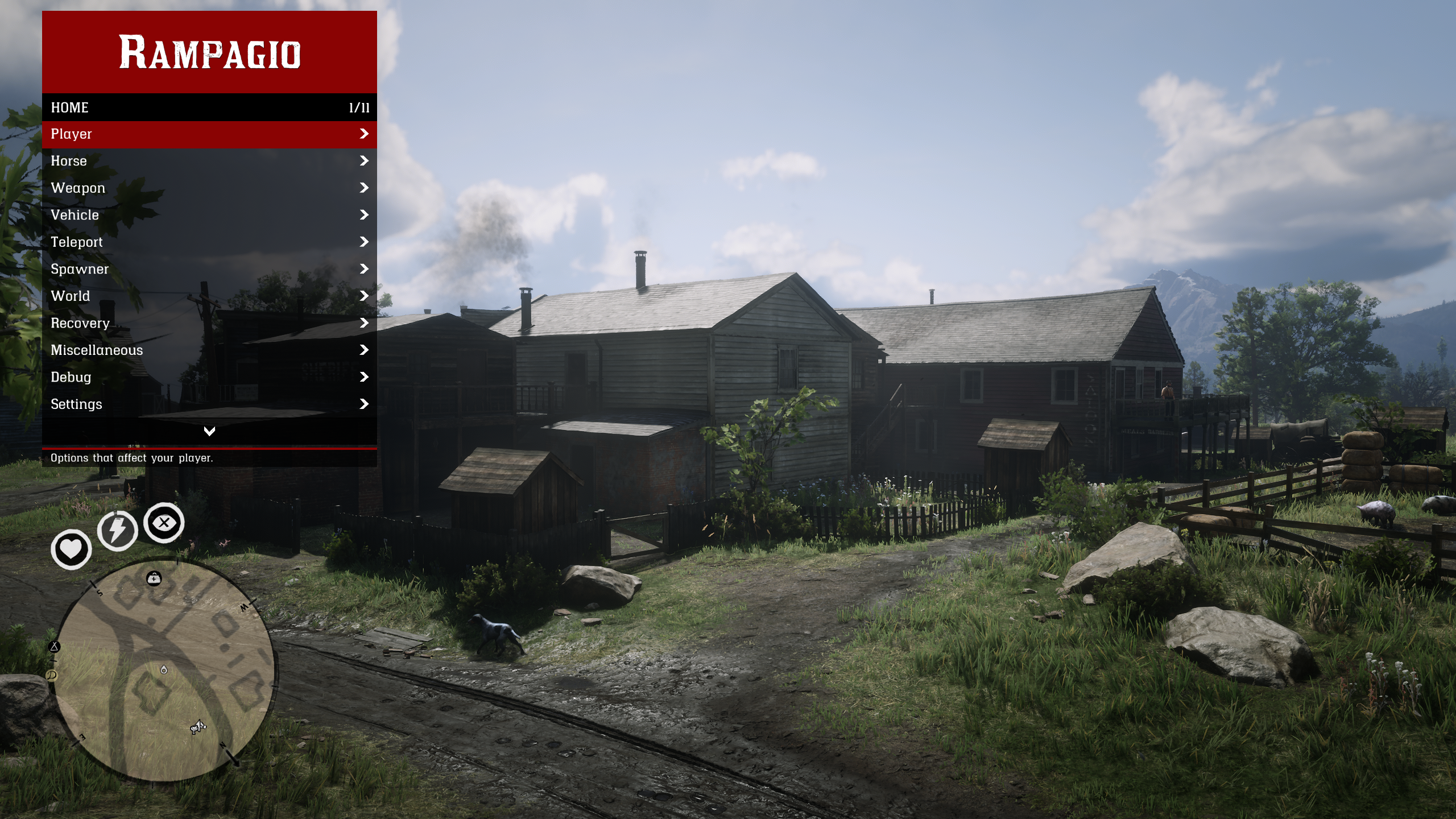
A singleplayer trainer menu for Red Dead Redemption 2, built as a ScriptHookRDR2 ASI plugin. One menu for your character, horse, weapons, vehicles, teleports, spawning, world and time, collectibles, items and more, with a description under every selected row.
Features
Player – godmode and other toggles, wardrobe and outfits, animations, scenarios, walk styles, effects, hair and weight, model changer
Horse – horse options, stats and cores, horse spawner, saved horses
Weapons – weapon toggles, ammo, weapon visuals and more
Vehicles – wagons, trains, boats, with saved vehicle files
Teleport – common locations, regions, shops and services, your own saved spots, and an interactive map: pan, zoom, click a place or right-click anywhere to teleport
Spawners – peds, animals, horses, objects and legendary animals, with optional picture previews
World – weather, time, ped and object managers
Recovery – money, honor, bounty, the game's built-in cheats, unlocks, and Give Items built from the game's full singleplayer item catalog
Collectibles – blips and lists for cigarette cards, dinosaur bones, dreamcatchers, rock carvings, legendary animals and more that know what you have already found or killed
Minigame helpers – Poker, Blackjack, Dominoes and Five Finger Fillet advisors, challenge completion, fishing and Dead Eye fixes
Tools – Script Monitor and Global Editor windows, log viewer
Quality of life
Keyboard, mouse and gamepad navigation. Keyboard: NUMPAD 8/2 move, 5 select, 0/Backspace back. Gamepad: RB + Left opens it, then D-pad, A and B. Optional mouse control.
Hotkeys – bind any command to keys, mouse buttons, the wheel or pad buttons, with chains and presets that run several commands at once. Press F11 on a row to bind it.
Saved settings – every toggle and value is remembered in
Rampagio.jsonand comes back next time you start the game.13 languages – follows the game's language, or pick one in Settings.
Themes – colors, position, rows per page and sounds are adjustable.
Singleplayer only
Rampagio detects Red Dead Online and switches everything off for the rest of the session. It will not open its menu online, and online-only features are not included.
Requirements
Red Dead Redemption 2, game build 1491.50
Installation
Install ScriptHookRDR2 if you haven't already.
Copy
Rampagio.asiinto your Red Dead Redemption 2 folder (next toRDR2.exe).Start the game in singleplayer and press F5. The key can be changed in Settings > Core.
To uninstall, delete Rampagio.asi (and Rampagio.json if you want to drop your settings).
Notes
This is a young project. Many features are still being tested in-game, so if something doesn't work, please report it.
Don't run it at the same time as another trainer using the same menu key, or load the standalone versions of the Poker, Blackjack, Dominoes, FFF, FishingFix or ChallengeCheat mods next to it, since Rampagio includes them.
Use at your own risk, and keep a backup of your save before using recovery and unlock features.
Links
Source, downloads and bug reports: github.com/Evasion3356/Rampagio
Edited by gir489
Recommended Comments
Create an account or sign in to comment