




Discord - https://discord.gg/d6uHBsRZp8
==============================================================================
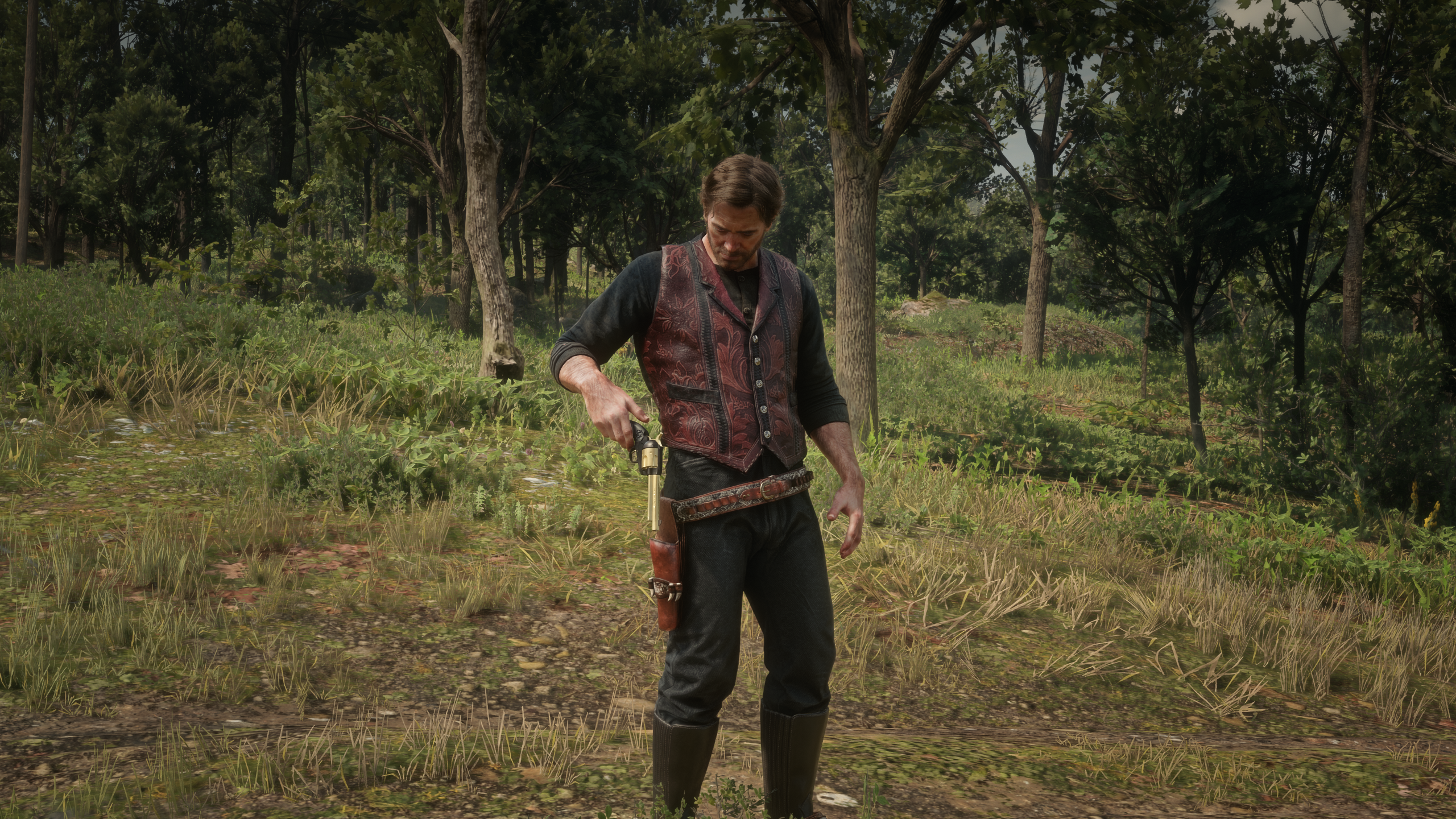
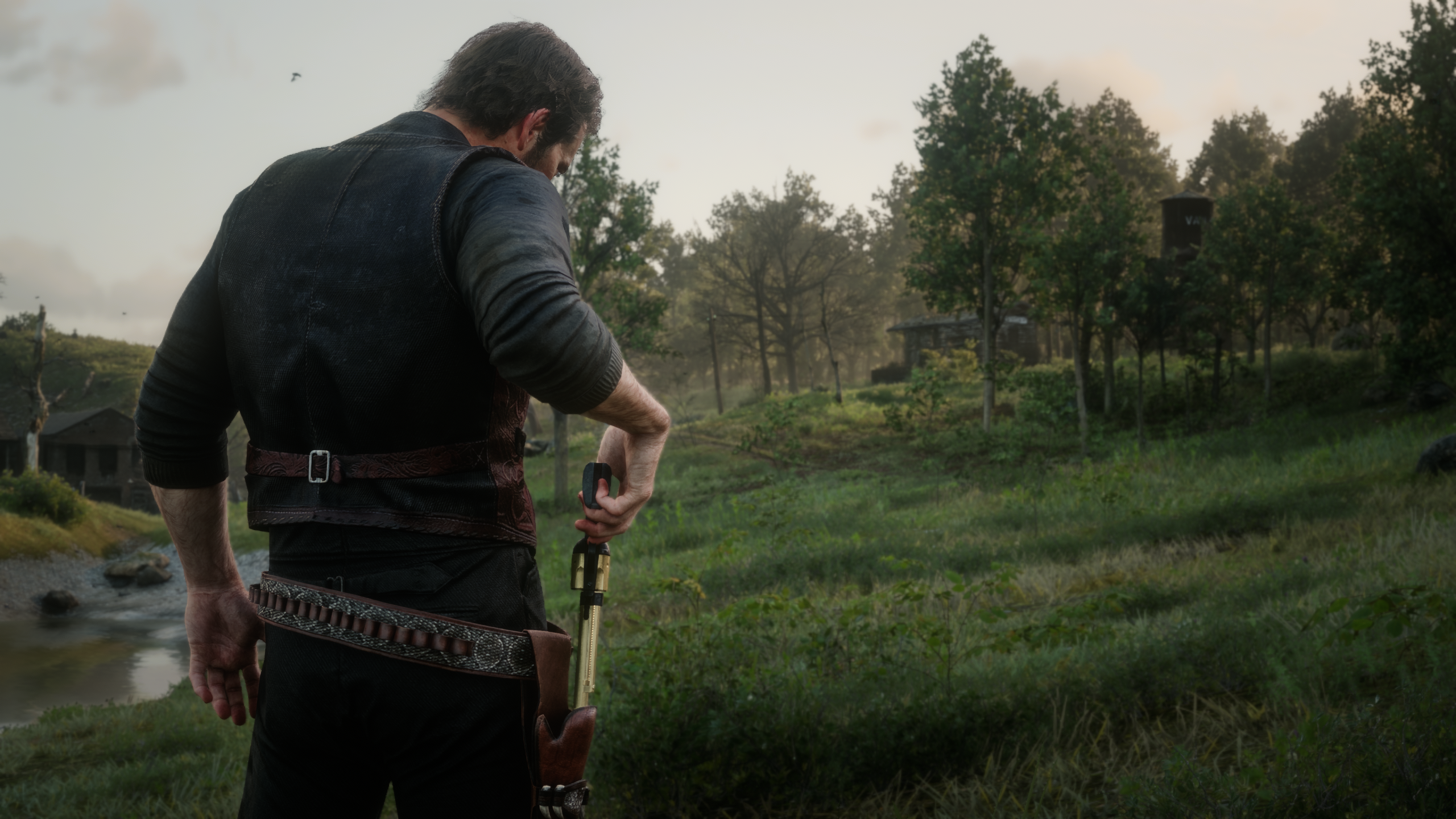
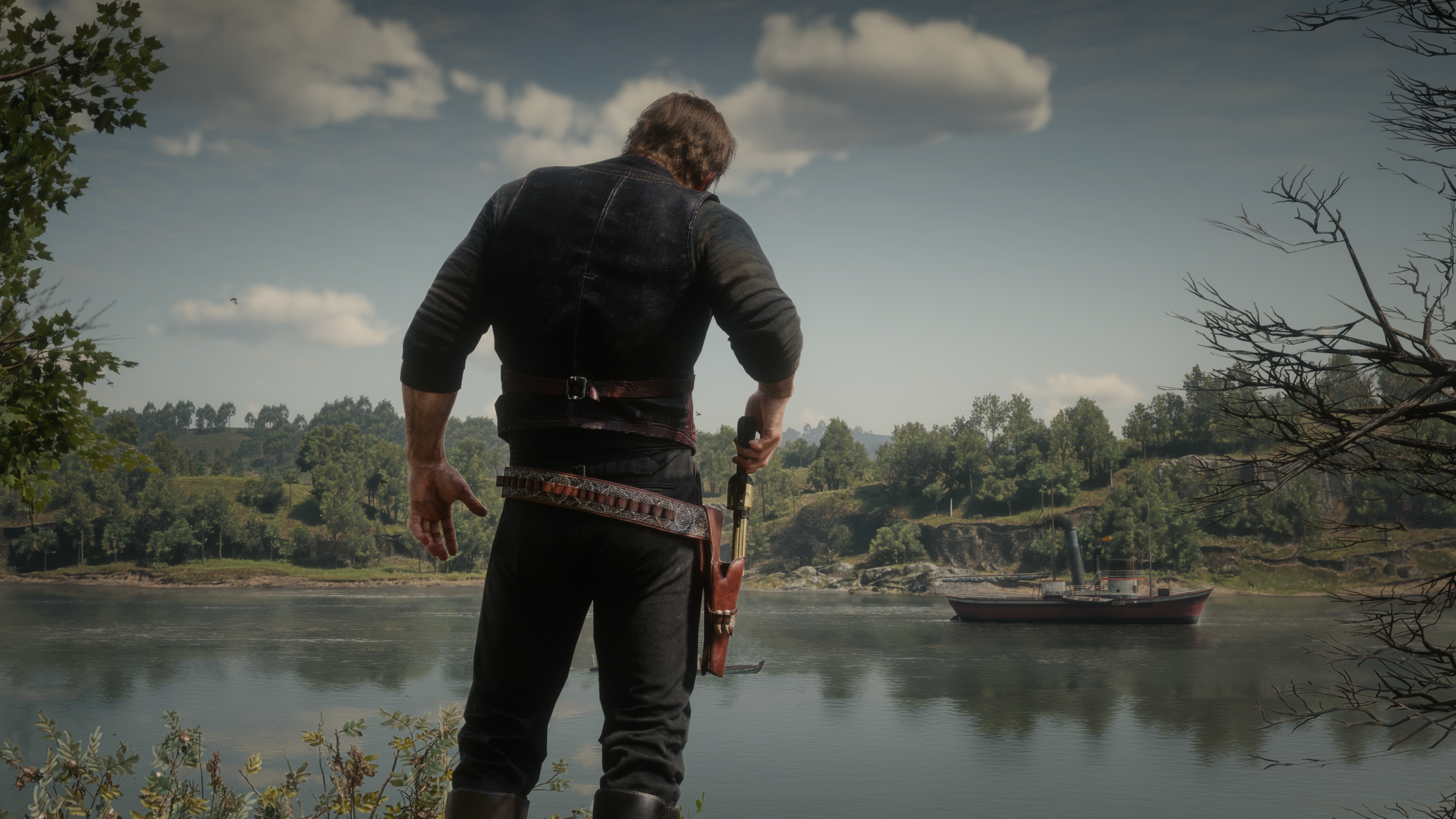
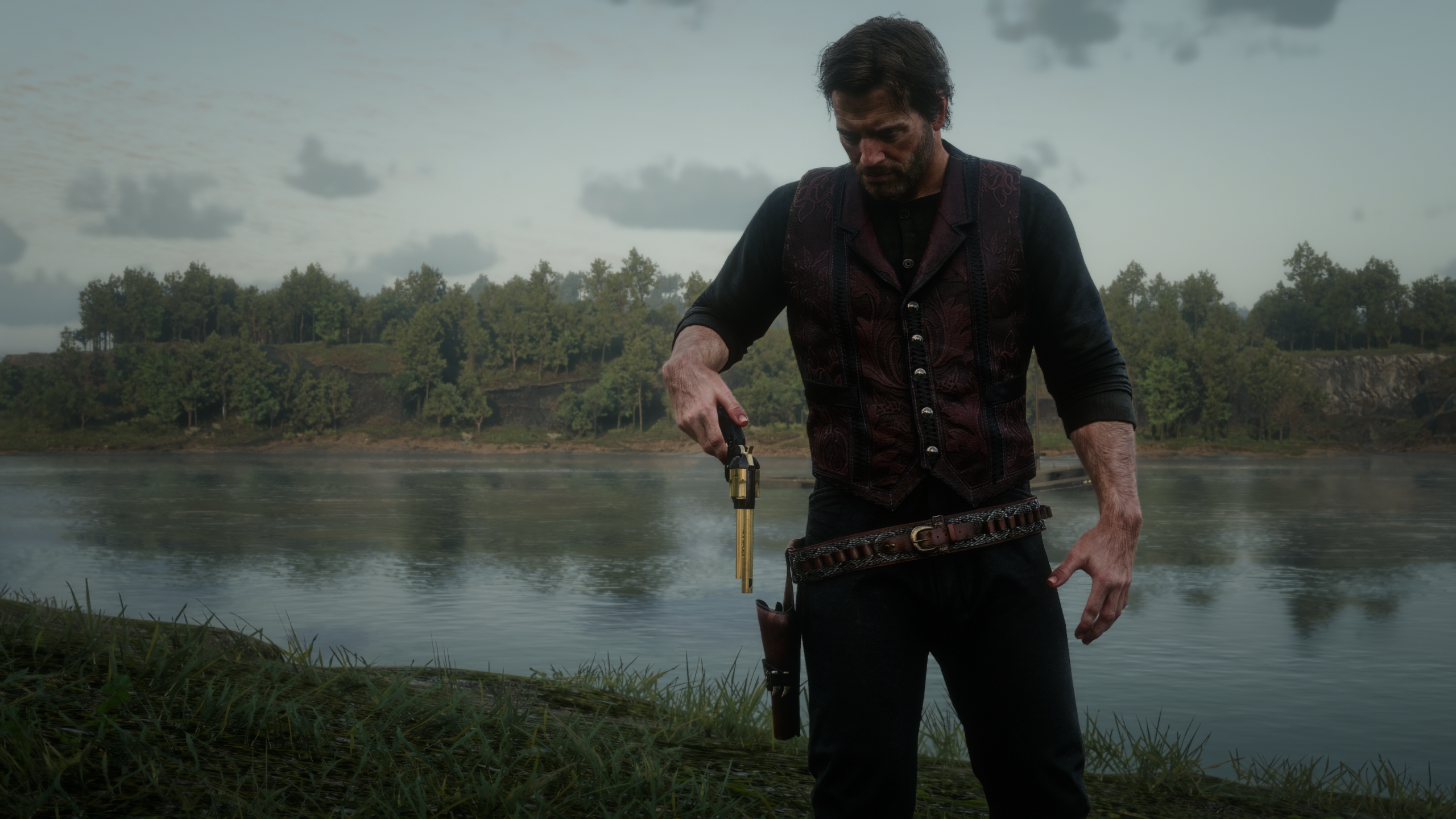
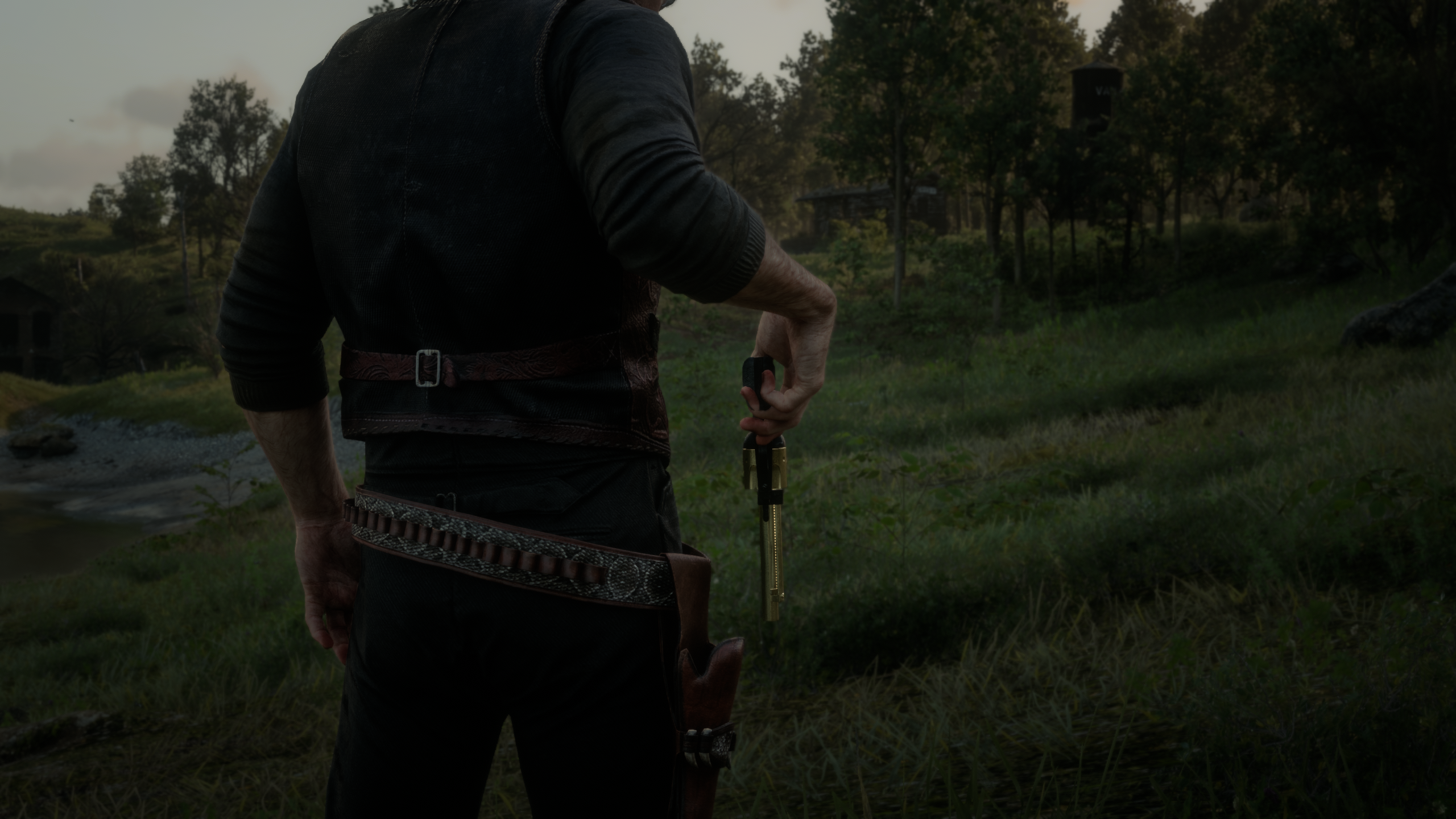
SLOW HOLSTER - put your gun away slowly, like after a standoff
==============================================================================
Every now and then in the story, after talking down a witness or defusing a
standoff, Arthur or John takes his time putting his revolver back in the
holster. This mod gives you that slow holster on a key of its own, using the
game's own animation.
Press ` (the key left of 1) with your revolver or pistol in hand and he
slowly holsters it. You can keep walking while he does. Tab still does the
normal quick holster.
With your secondary (left-hip) pistol, a rifle, a shotgun, two pistols or
anything else in hand, the key just does a normal holster. If he's carrying
a rifle or shotgun in his other hand, he keeps holding it: only his right
arm does the slow holster then.
REQUIREMENTS
------------
- Script Hook RDR2 (by Alexander Blade)
- Story mode only (Script Hook mods don't run in Red Dead Online)
INSTALL
-------
1. Copy SlowHolster.asi into your Red Dead Redemption 2 game folder (the
folder with RDR2.exe in it).
2. Optional: copy SlowHolster.ini there as well. If you don't, the mod creates
one with the default settings the first time you start the game.
UNINSTALL
---------
Delete SlowHolster.asi, SlowHolster.ini and SlowHolster.log from the game
folder.
KEY
---
` Slow holster
You can change it in SlowHolster.ini. On some non-US keyboards the ` key is
somewhere else or has another code; set HolsterKey to a key you like.
SETTINGS
--------
SlowHolster.ini explains every setting. You can change it while the game is
running: save it and the mod picks up the change within a second.
Speed How fast the animation plays. 1 = the game's own speed,
0.9 (the default) = a little slower.
HolsterAt Roughly when the gun goes into the holster, from 0 (start of
the animation) to 1 (the end). The mod looks around this point
for the moment the gun is closest to the holster.
EndAt When his arms let go and go back to normal, from 0 to 1. Lower
it if his arms hang on in a pose after holstering, raise it to
keep more of the animation.
OnHorse 1 = slow holster on horseback too, 0 = normal holster there.
GOOD TO KNOW
------------
- The gun goes into the holster at the moment it's closest to it, wherever
he's looking or however he's standing. It can still clip a little, because
his hand doesn't always reach the holster exactly.
- Aiming or shooting during the slow holster cancels it straight away, so you
can always draw again.
UPDATING
--------
Replace SlowHolster.asi. Your SlowHolster.ini is kept and gets new settings
added automatically (without their explanations). Existing values are kept.
Delete the INI if you want a fresh one with all the new defaults and
comments.
TROUBLESHOOTING
---------------
- Nothing happens on `: check HolsterKey in SlowHolster.ini, and that
SlowHolster.log in the game folder says "SlowHolster Loaded".
- For a detailed log, set DebugLog=1 in SlowHolster.ini.
---------------
shaun9797
Recommended Comments
Create an account or sign in to comment